 Kaveh
Kaveh Appearance
Modmail (for staff)
This page is for moderators and admins. Modmail turns a member's private message to Kaveh into a private conversation between them and your staff. By the end you'll have it set up and know how to answer, close and review conversations. Members have their own page: Talking to staff.
How a conversation goes
- A member sends Kaveh a direct message. If Kaveh is in several servers with modmail, they choose which one.
- Kaveh creates a private channel under your modmail category and posts the message there, as the member, with their name and avatar.
- Staff talk freely in that channel. Nothing typed there reaches the member unless someone replies with
/modmail replyor/modmail anon, or from the dashboard. So you can discuss the case without worrying about leaks. - When it's resolved,
/modmail closesaves a transcript and ends the conversation.
The member sees one tidy card with your name and role, your message and any picture. In your channel, your replies are echoed with a small grey line ("Sent to the member by Alex (Moderator)"). A member can have one open conversation at a time.
Set it up
Run /setup modmail, or open Modmail in the dashboard. You choose:
- the category where private channels are created,
- a log channel for open and close events,
- optionally a role to ping, a reminder channel, an opening message the member sees, and a short history hint when someone has written before.
Then test it: send Kaveh a direct message from an account that isn't staff, and check that a channel appears.
Answer and manage conversations
| You want to | Use |
|---|---|
| Reply as yourself | /modmail reply |
| Reply without your name (shown as "staff") | /modmail anon |
| Reply from the dashboard | Modmail > Records, open the conversation, write under the messages |
| Leave a note only staff see | /modmail note |
| See state, priority and how long the member has waited | /modmail status |
| Mark urgency (low, normal, high, urgent) | /modmail priority |
| Label a conversation | /modmail tag add, remove, list |
| Get pinged when the member writes again | /modmail subscribe, unsubscribe |
| Start a conversation with a member | /modmail open |
| Send a saved answer | /modmail snippet send |
| Finish or reopen | /modmail close, /modmail reopen |
A typical ticket:
text
(member: "Someone is harassing me in voice chat")

/modmail priority priority:high
/modmail reply message:Thanks for telling us. Can you share a rough time and the channel?
/modmail note message:Checked logs, matches the 21:40 voice incident
/modmail anon message:We've spoken to the member involved. Let us know if it continues.
/modmail close reason:Resolved, member warned
Saved replies
Save an answer once and reuse it:
text
/modmail snippet add name:rules content:Hi {user}! Our rules are in #rules. {staff} will follow up if anything is unclear.
/modmail snippet send name:rules
Names use lowercase letters, numbers, - and _. You can use {user} (the member), {staff} (you) and {server}. You can also manage saved replies in the dashboard under Modmail > Replies & blocks.
Stop abusive messages
Blocking stops a member from opening modmail with your server:
text
/modmail block add member:@troll reason:Harassing staff in DMs
/modmail block list
/modmail block remove member:@troll
You can block someone who has left by pasting their user ID. Staff can't be blocked. The member only sees a short neutral message, never the reason. Blocks are per server and don't expire, and every change is written to your audit log. A conversation that is already open stays open until you close it, but new messages aren't passed on.
Keep on top of it
- Reminders. If a member's last message has gone unanswered longer than your reply target (24 hours by default,
/modmail sla), Kaveh posts a reminder in your reminder channel. - Auto-close.
/modmail sla hours:24 auto_close_hours:72closes conversations that went quiet after staff replied last. A member who is waiting on staff is never auto-closed, and the member gets a warning first.0turns it off, which is the default. In the dashboard it's Modmail > Setup. - Team stats.
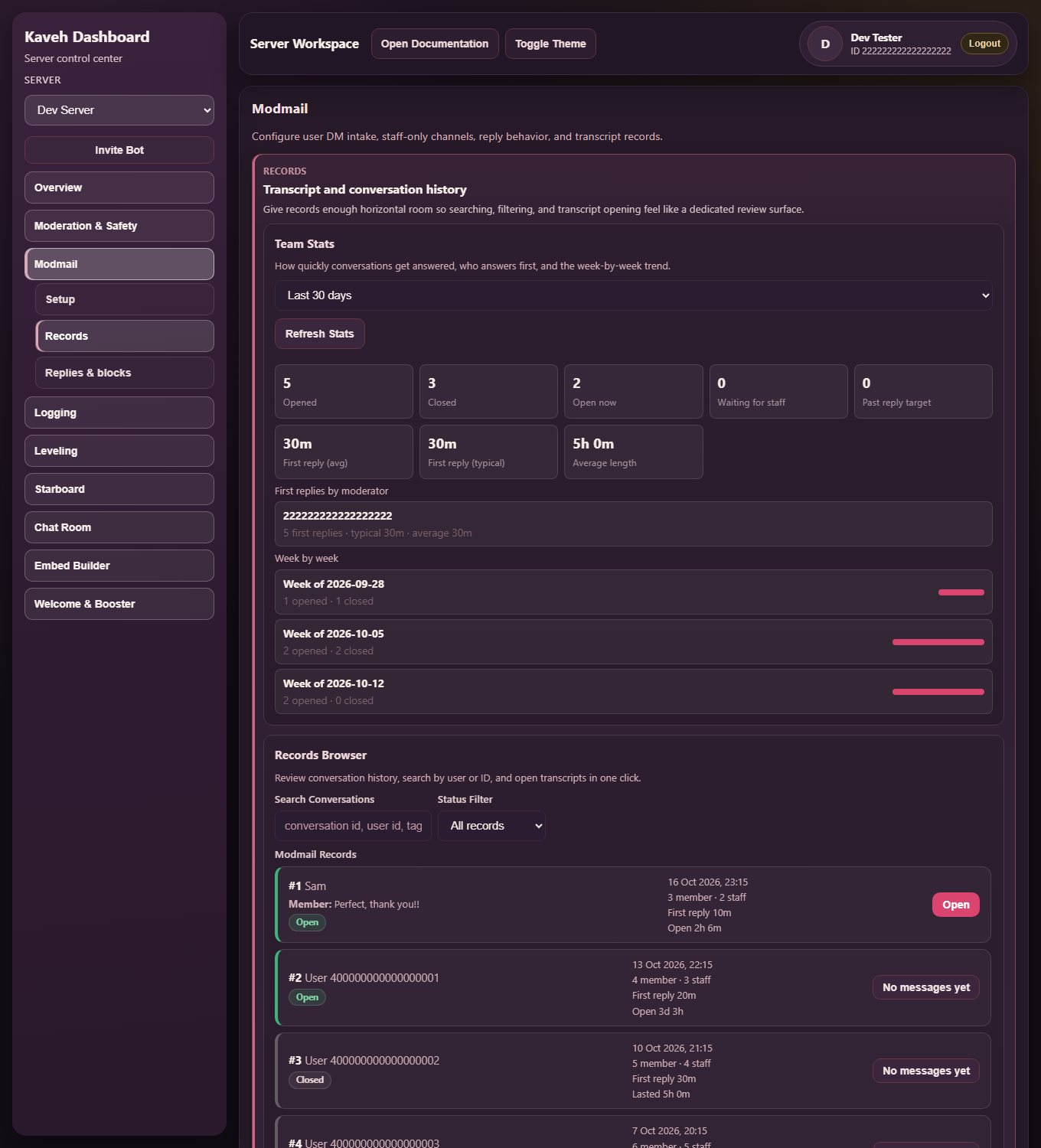
/modmail stats(or Modmail > Records) shows conversations opened and closed, how many are waiting on staff, first-reply times, who answered first, and a week-by-week trend.
Transcripts and files
/modmail close saves a transcript, posts a summary to your log channel (who, how long, message counts, tags) and gives you a button to open it. If you haven't set a log channel, Kaveh reminds you, because otherwise nobody else sees the summary.
Staff read conversations in the dashboard under Modmail > Records. The viewer keeps formatting, shows pictures in place, labels staff-only notes (you can hide them) and has a search box. Open conversations can be read too, not only closed ones, and only moderators of your server can open them.
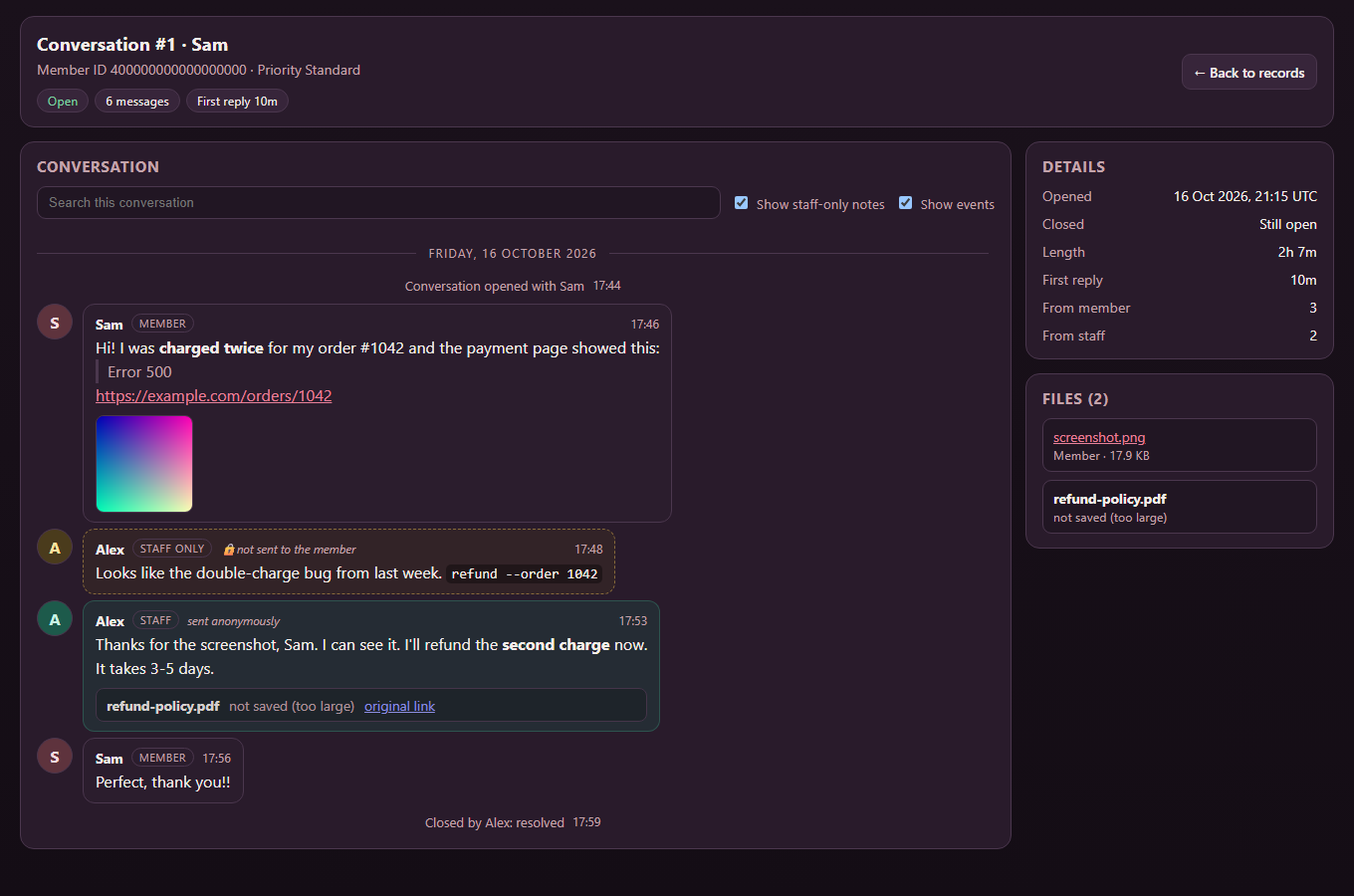
Files sent in a conversation are copied to Kaveh's storage, so old transcripts keep their pictures after Discord's links expire. Files over 25 MB, or beyond 200 MB per conversation, aren't copied, and the transcript says so. Only files hosted by Discord are fetched.
The screenshots on this page use a demo server with made-up data.
If something goes wrong
- The member got no channel. Check that the category exists and Kaveh can create channels and manage permissions there.
- "They may have blocked the bot or disabled direct messages." Kaveh says this in the thread when a message can't be delivered. Ask the member to allow direct messages from server members.
- Nothing happens when someone writes. Check that modmail is turned on and that the member shares a server with Kaveh.
Related
- Talking to staff: the member's side
- Moderation
- What Kaveh doesn't do yet